Short answer: you program a booth LED sign by rendering exactly what you want on the panels as an ordinary web page — sized to the wall's real pixel grid — and driving the LED controller with that page over HDMI. To make the numbers change live, feed the page from a data source your floor staff can already update; in this build that's a Google Sheet fed by a phone app. The graphics are the easy part. The three things that actually decide whether it works are: matching the controller's exact resolution, deciding when a number is allowed to change in front of a crowd, and making sure the sign never goes blank when the venue Wi-Fi does.
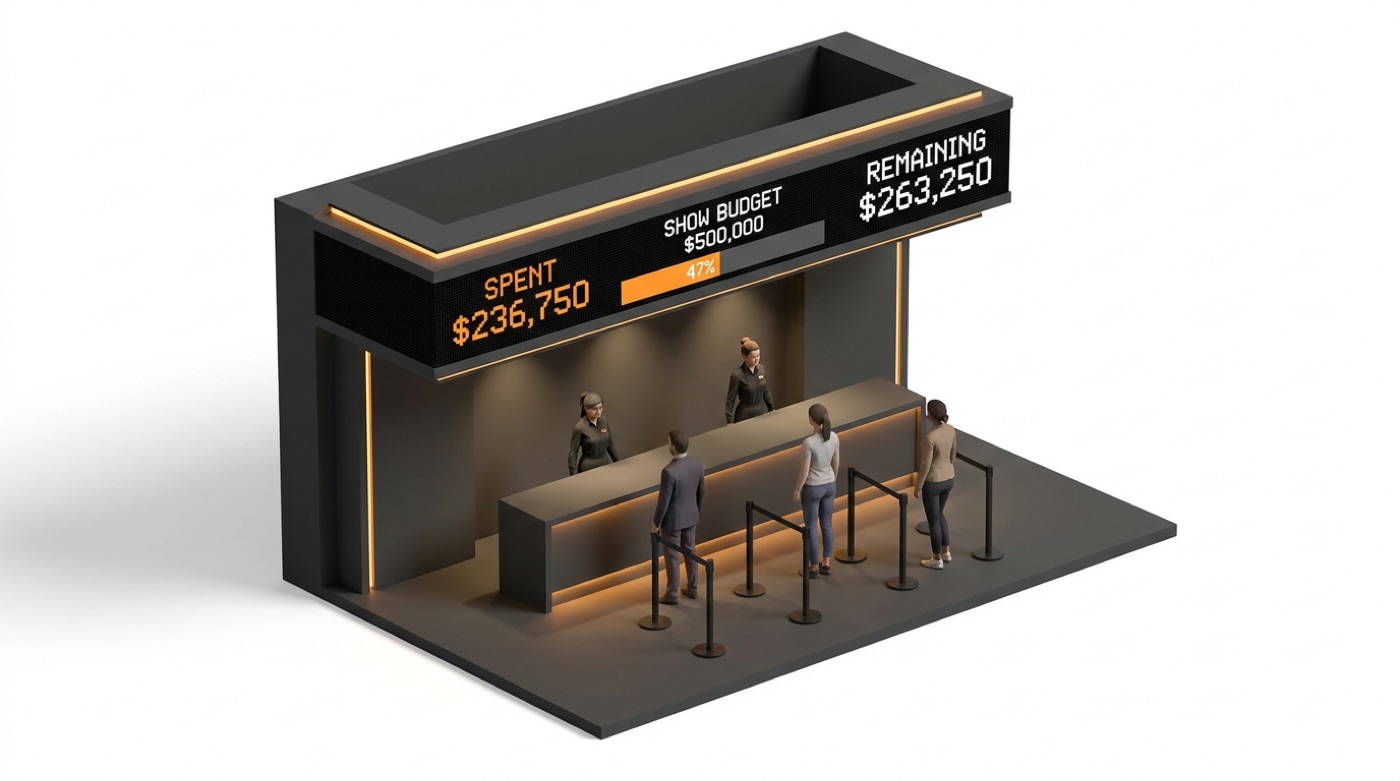
The booth: a 19 ft × 2 ft LED header across a trade-show buying stand. The task — make it show live cash-left-to-spend and change as the team buys.
The rest of this post is a real build: a one-line request, a vendor PDF, and a working programmed sign deployed the same evening — which is roughly what "fractional CTO" means in practice.
Want a booth LED sign programmed to show live data?
If you're planning a stand and want a booth display stand LED sign that does more than loop a logo, that's exactly the point of this post. The same approach programs a live sales counter, a leaderboard, a sponsor ticker, a countdown, or a giveaway board — anything that reacts to what's happening on the floor. The build below is a "cash budget" header, but the method is general: a fractional CTO turns your one-line idea and the vendor's quote into a programmed, tested sign in the time you actually have before the show.
The request was one sentence
A collectibles-buying company was setting up a booth display stand at a big show. The stand had a long LED header across the top, and the ask was simple:
"The header should show how much cash we have left to buy cards — SPENT, SHOW BUDGET, REMAINING — and change as we buy."
That's the whole brief. No spec, no resolution, no data source. Turning a sentence like that into a programmed LED sign you can put in front of a crowd is a series of unglamorous decisions — and the job is to make them before, not during, the show.
How to program an LED sign, step by step
Here's the actual procedure — the same order you'd follow for any booth LED display, whether it's showing a budget, a leaderboard, a countdown, or a sponsor reel:
- Get the real resolution from the cabinet count, not the render. The vendor's quote PDF listed the panels: 9 cabinets × 256 px = 2304 × 256 pixels at 2.5 mm pitch — a 9:1 wall, not the tidy 10:1 the booth mock-up assumed. Program to the render and your text is stretched on show day. Every LED sign is just a grid of pixels; step one is knowing that grid exactly.
- Size the art to the viewing distance. People read a booth header from across an aisle, so a single 2.5 mm LED is too fine to carry a letter. Set one "art pixel" to 4 × 4 LEDs (10 mm) so the numbers stay crisp from ten feet back.
- Confirm the controller can drive it — and find the trap. The controller was a NovaStar TB60-class unit: HDMI 1.4 in, 2.3 M-pixel capacity vs the 0.59 M this wall needs — comfortable headroom. The trap: in sync mode a NovaStar controller scales the HDMI source to fill the screen. If the PC outputs anything other than exactly 2304 × 256, the text warps. Set the PC to a custom resolution matching the wall, and confirm the scaling mode with the vendor before you build.
- Render the content as a web page at that exact resolution. A very wide, very short browser window is your canvas. This is how you "program" the sign: HTML/CSS/JS drawing on the real grid, output over HDMI, mapped straight to the panels.
- Wire the live data. Decide the source of truth (here a Google Sheet), have the page poll it, and animate on change.
- Lock the machine down and plan the failures (kiosk mode, fallback network, never-blank) — covered below.
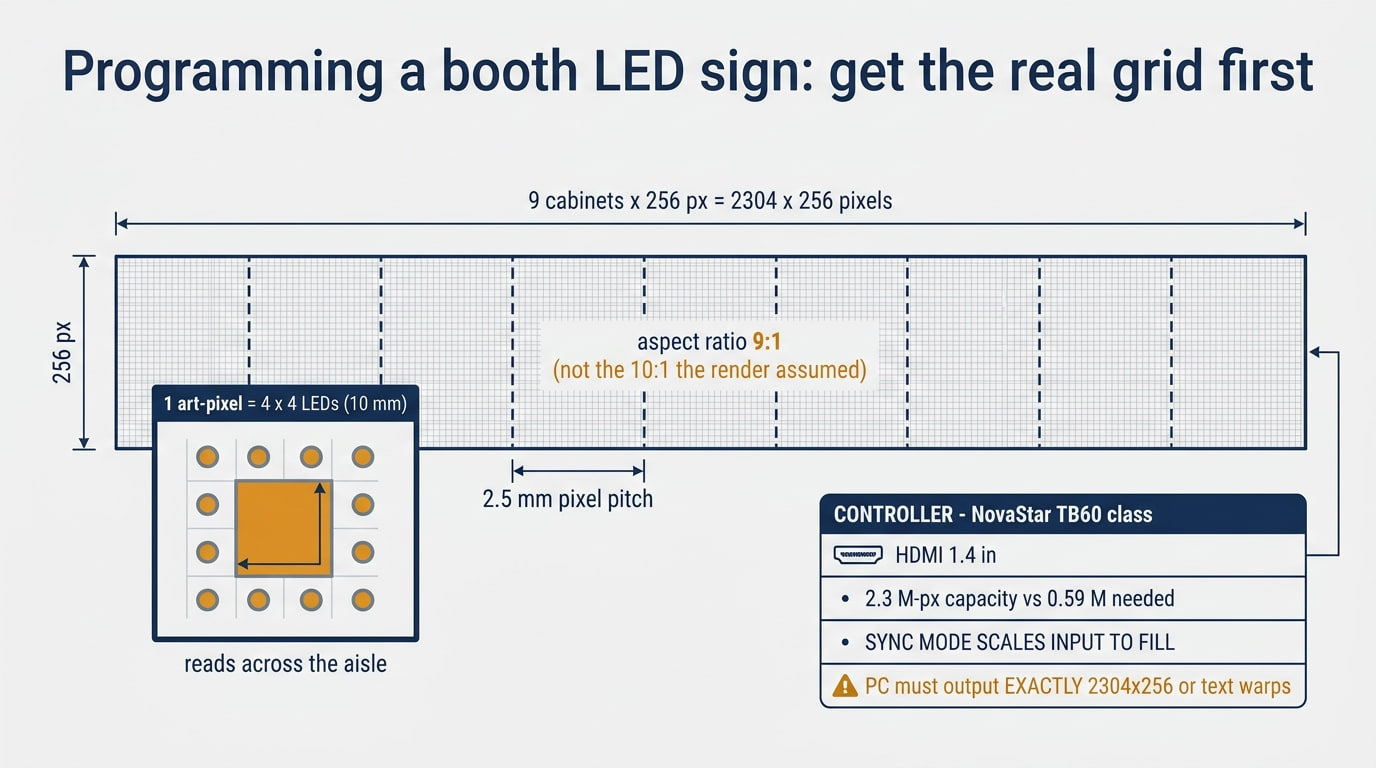
The grid you have to program against: 9 cabinets × 256 px, a 9:1 wall, and a controller that scales anything that isn't exactly 2304 × 256.
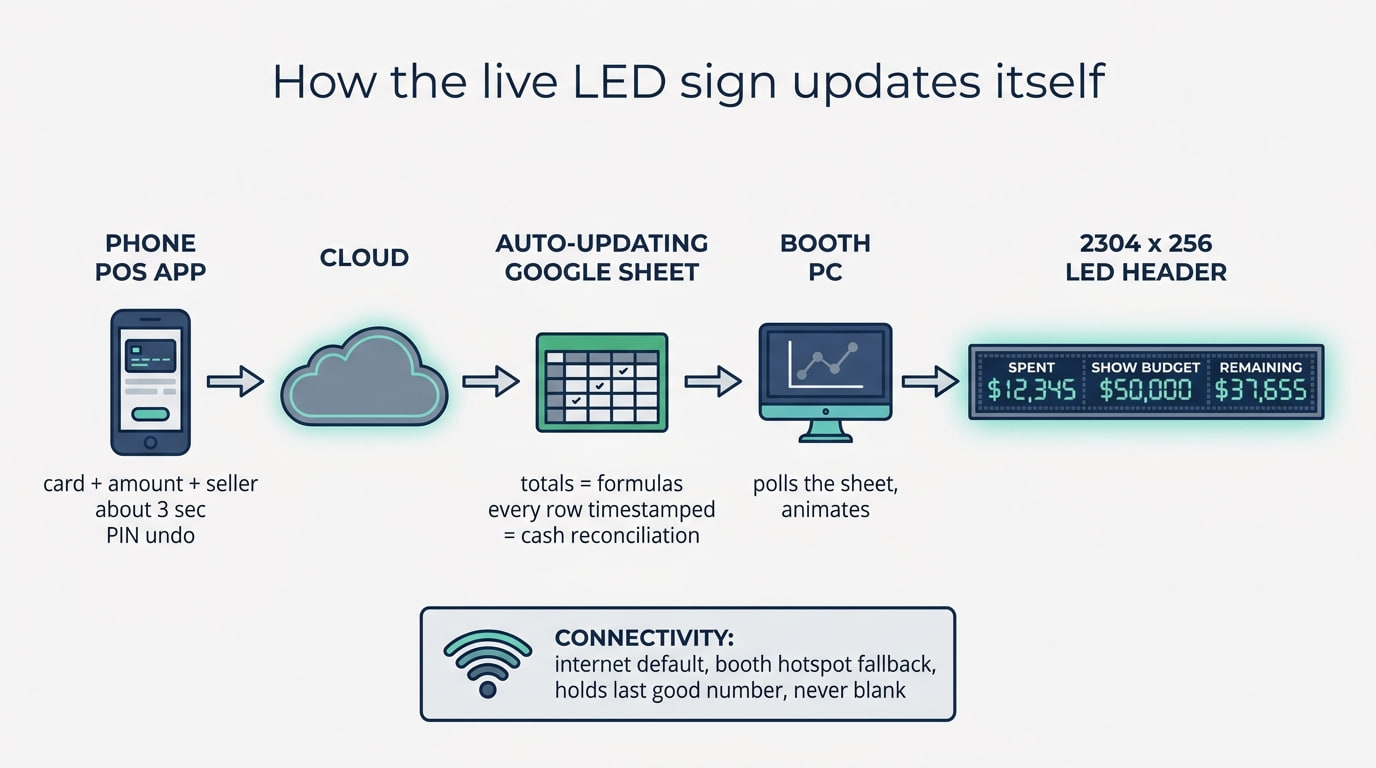
How the sign updates itself: a phone entry flows to a Google Sheet, the booth PC polls it and re-renders the wall. If Wi-Fi drops, a hotspot takes over and the sign holds the last good number.
How does the sign update live without a developer standing next to it?
The data path is deliberately boring, because boring survives a show floor:
- A phone POS app. A staffer taps card + amount + seller — about 3 seconds, with a PIN-protected undo.
- → the cloud → an auto-updating Google Sheet. Totals are spreadsheet formulas; every entry is timestamped. That timestamped log is your cash reconciliation at the end of the day — a free byproduct, not extra work.
- → the booth PC polls the sheet and animates the wall.
Why a Google Sheet and not a "real" backend? Because the client's own staff can read it, audit it, and fix a fat-fingered entry without calling anyone. The clever part of programming a live sign is choosing the least clever component that will hold up.
Connectivity is planned for failure: internet by default, the booth's own hotspot as fallback, and if both drop, the wall keeps the last good number and never goes blank. A blank header in front of a crowd is worse than a slightly stale one.
The rules that mattered more than the code
A trade-show sign is theatre, and the theatre has rules you decide up front:
- Only ever decrement on a confirmed payout. The REMAINING number must never go back up in front of a crowd — that reads as a glitch or, worse, a walk-back. Corrections happen behind the number, never on it.
- Plan the "$0 remaining" moment. Running out isn't a failure state — a public budget top-up is great theatre. Program for it instead of letting it look broken.
- Lock the machine down. Kiosk mode, no sleep, no OS updates mid-show, auto-relaunch on crash, and a static fallback graphic if the app itself dies. The booth PC has exactly one job for two days.
None of these are code problems. They're the judgment calls that separate a demo from something you'd trust in front of paying customers — the reason you want someone who has shipped before, not just someone who can code.
The old way vs. a fractional CTO — what actually changes?
| The usual way | With a fractional CTO | |
|---|---|---|
| Time | 1–2 weeks across vendors | One evening (PDF → deployed) |
| Cost | A dev, a designer, and the LED integrator, each billing | A fraction — one person owning the whole loop |
| Who's involved | You coordinate three suppliers | One technical owner who talks to the vendor for you |
| What you get | A quote and a timeline | A working, tested sign you can show |
| Risk caught | On the show floor, in front of a crowd | Before a pixel is built (the resolution gotcha) |
The difference isn't that a fractional CTO writes faster code. It's that one person reads the vendor quote, spots the trap, designs the data flow, programs the sign, and owns the failure modes — so the work that usually takes three suppliers and two weeks fits into the runway before your show.
What makes people actually stop and watch?
Once the plumbing is safe, the sign can earn its spot. The demo layers in eye-stoppers, all driven from the same live data:
- A pixel sale animation on every purchase — flash, the board slides out, a card slab drops in, the seller's name types out, the amount slams in, and the money physically flies from REMAINING into SPENT.
- Sport-specific plays auto-detected from the card name.
- A BIG BUY takeover for headline purchases.
- A Pac-Man-style mascot idle loop between sales so the wall is never dead.
- Top buy of the day with a pixel portrait of the seller, an hourly giveaway countdown with a winning ticket, and synthesized sound (Web Audio — no sound files to ship).
You can play with all of it in the live demo: live-budget-wall.netlify.app — the interactive wall, the POS phone, and the auto-updating sheet, with sound. (The numbers in it are demo data.)
What a CTO checks before programming a live LED display — the checklist
If you take one thing from this, take the list. Before writing any code for a live physical sign:
- Real resolution from the cabinet count, not the marketing render (here: 2304 × 256, and 9:1 not 10:1).
- Viewing distance → art-pixel size so the content reads from where the audience stands.
- Controller headroom and scaling behaviour — does it expect an exact input resolution? (The NovaStar scaling gotcha.)
- A data source the client's own staff can update and audit under pressure.
- A failure plan for connectivity — fallback network, last-good-value, never-blank.
- Rules for what the numbers are allowed to do in public — one-directional, correct behind the scenes.
- The machine locked down — kiosk mode, no sleep, no updates, auto-relaunch, static fallback.
- The "edge" moments designed on purpose — the $0, the crash, the dead Wi-Fi.
Most of these are questions, not code. Answering them early is the entire value.
FAQ
How do you program an LED sign to show live, changing data?
Render the content as a web page at the panels' exact resolution, output it over HDMI to the LED controller, and have the page poll a live data source (a Google Sheet, an API, a database) and re-render on change. The "programming" is ordinary web code; the discipline is matching the real pixel grid and controlling when the numbers move.
Can you really drive a booth LED sign from a web page?
Yes. The LED controller takes an HDMI signal like any monitor. Render a page at the wall's exact pixel resolution, output it over HDMI, and the controller maps it to the panels. The web page is just a very wide, very short browser window.
What's the deal with NovaStar and custom resolution?
NovaStar-class controllers in sync mode scale the HDMI input to fill the panels. If the source PC doesn't output the panels' native resolution exactly (here 2304 × 256), your content gets stretched or squashed. Set the PC to a custom resolution matching the wall, and confirm the controller's scaling mode with the vendor before the show.
What happens if the venue Wi-Fi dies?
The sign holds the last good number and keeps animating; a booth hotspot is the fallback network. It's designed so the audience never sees a blank or an error screen — a stale number beats no number.
How does the Google Sheet stay in sync?
A phone app writes each purchase to the cloud, which updates the sheet; totals are formulas, and every row is timestamped. The booth PC polls the sheet and re-renders. The same sheet doubles as the end-of-day cash reconciliation.
How long does something like this take?
This one went from a vendor PDF in the evening to a deployed, working demo before a dinner meeting the same night. Scope varies, but the point of a fractional CTO is that the loop from "one-line ask" to "working thing" is measured in hours, not weeks.
Need a booth LED display programmed for your next show?
If you're standing at the other end of this — a booth display stand with an LED header, a show date getting closer, and a "wouldn't it be great if the sign could show this" idea — that's exactly the shape of problem Sunbek takes on. We turn a one-line request and a vendor quote into a programmed, tested LED sign that survives the show floor: live data, custom resolution set correctly, and every failure mode planned before you're on the stand.
See how Sunbek's CTO-as-a-service works →, or see this build and others in our portfolio. Tell us the show date and what you want the sign to say — we'll tell you what's actually programmable in the time you have.